![TD - symbol.svg]](https://tourneydirect.com/hubfs/Tourney%20Direct/TD%20-%20symbol.svg)
What is TD Pay?
TD Pay is Tourney Direct's secure, integrated, and user-friendly stipend payment solution powered by Stripe.
With TD Pay, you'll receive your stipend payment on average within 48 hours of attending your event, provided the following criteria are met:
- You are confirmed to attend or work the event for a stipend.
- You check in at the event by scanning the QR code available at the info tent or check-in table for each required day of attendance—no exceptions. Please see our page on what to do if you miss checking in at an event.
- You have a TD Pay account set up and enabled for payment processing.
TD Pay ensures a smooth and reliable payment experience for all confirmed participants all in a single location for coaches, day of event staff, athletic trainers, and officials.
Information You'll Need:
- Legal Name (Your full name as it appears on your license)
- Date of Birth
- Last 4 digits of your SSN
- Bank account information
Reminder:
The "create account" link is a one-time only link. If you start the process but have to stop or click away, please reach out to our team at info@tourneydirect.com to request a new set-up link. This is by design to keep your information safe.
Steps to connecting a payment account via TD Pay:
You only have to follow these steps once! Once your payment account is connected, your future stipend payments will be sent without any additional steps required from you.
To connect a payment account:
- Login into the stipend portal, click on the Payments tab, and click on the orange "create Stripe account" button.
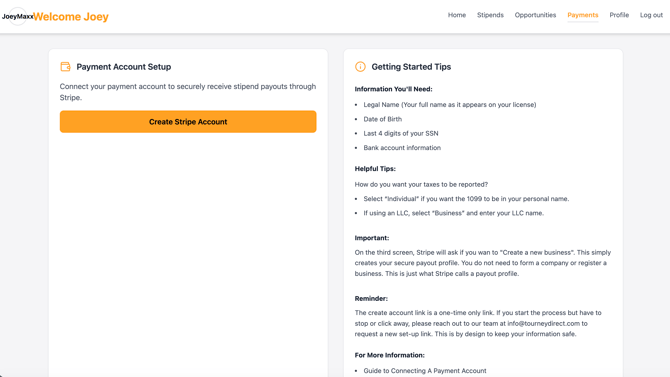
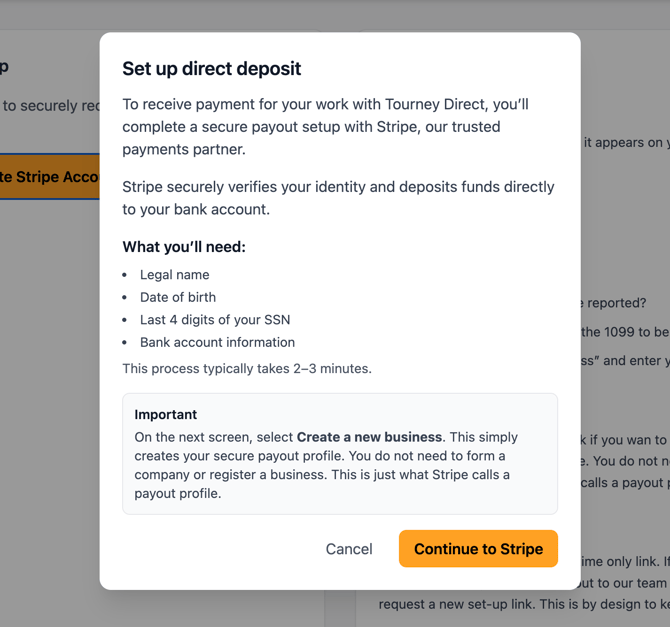
- Please read the instructions carefully to ensure you have the information needed on hand. Click the "Continue to Stripe" button.
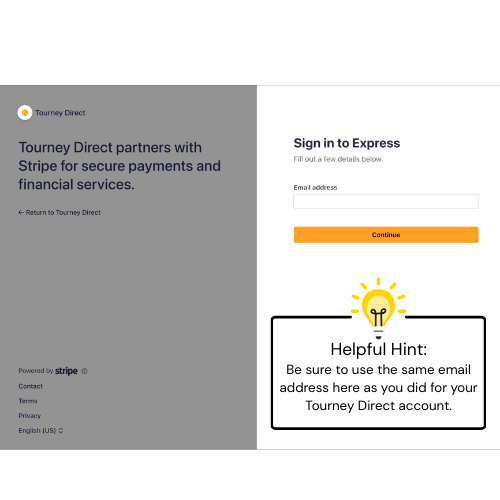
- A pop-over window will appear that looks like the below screen capture. You will need to provide your email address and mobile number for verification purposes.
.png?width=500&height=500&name=Helpful%20Hints%20(1).png)
-
You’ll automatically be taken to the next step, where you’ll choose whether to connect an existing Stripe account or create a new business.
PLEASE READ: “Create a new business” is selected by default. This does not actually create a business for you—it’s simply how Stripe labels a new payment profile/account.
Once you’ve made your selection, click Continue.
.png?width=500&height=500&name=Helpful%20Hints%20(2).png)
- You'll automatically be taken to the next step where you'll be asked to identify whether your payment account is a business or an individual account. This has tax implications so be sure to use your LLC account if you want your 1099 tax form to be filed for your LLC and not you personally.
.png?width=500&height=500&name=Helpful%20Hints%20(3).png)
-
On the next screen, enter your name as it appears on your driver's license (full name), add your birth day (month/day/year), and the last 4 digits of your social security number or EIN (if you selected business/LLC).
.png?width=500&height=500&name=Helpful%20Hints%20(4).png)
-
Select the bank account where you’d like your stipend payment deposited. You can choose a checking account, savings account, or a debit card.
If you choose a checking or savings account, you’ll need your online banking username and password. Search for your bank or enter your account details manually.
If you choose a debit card, have your card ready so you can enter the card number and expiration date. If you opt to receive payments to a debit card, you can skip ahead to the review step below.
.png?width=500&height=500&name=Helpful%20Hints%20(5).png)
- Connect Your Bank Account
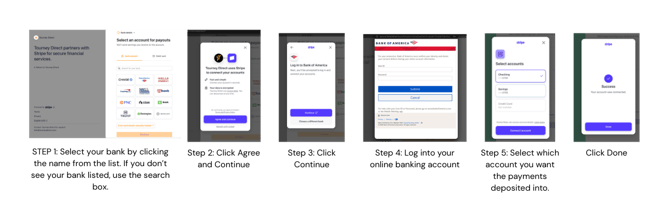 Step 1: Select your bank
Step 2: Click "Agree and Continue"
Step 3: Click "Continue"
Step 4: Log into your online banking account
Step 5: Choose which account you want the payments deposited into.
Step 6: Click Done!
- You may be asked if you want save with Link. Click "Finish without saving." You do not need to save with link.
.png?width=500&height=500&name=Helpful%20Hints%20(6).png)
- Review your details to make sure all information is correct. Click "Agree & submit". Once you have completed this step, Tourney Direct will receive notification that your account has been connected and enabled. We are now able to send you stipend payments for any of the events you work that we are providing stipend payment management for.
.png?width=500&height=500&name=Helpful%20Hints%20(7).png)