![TD - symbol.svg]](https://tourneydirect.com/hubfs/Tourney%20Direct/TD%20-%20symbol.svg)
This guide explains how to quickly update the per-game rate for officials using the bulk update feature in the portal.
Step 1: Log into the Portal
-
Log into your Tourney Direct portal.
-
Navigate to Events.
Step 2: Select Your Event
-
Use the event dropdown to select the event you want to manage.
Step 3: Open the Officials Tab
-
Click the Officials tab for that event.
-
You will see the list of officials assigned to the event.
Step 4: Select Officials
-
The Bulk button will be grayed out until at least one official is selected. This is by design.
You can select officials in three ways:
-
Select all officials:
Click the checkbox in the header row to the left of the Name column. -
Select multiple officials:
Check the boxes next to the rows you want to update. -
Select a single official:
Check the box next to that official’s row.
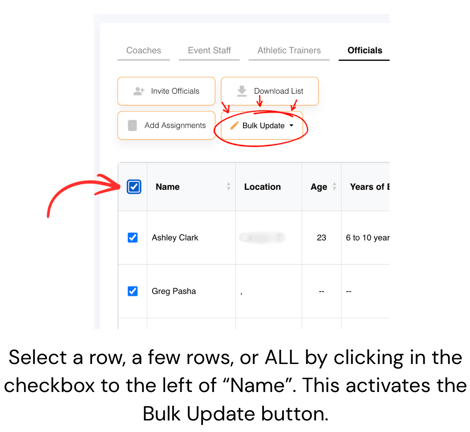
Once at least one row is selected, the Bulk action options will activate.
Step 5: Update the Rate
-
Click Update Rate $.
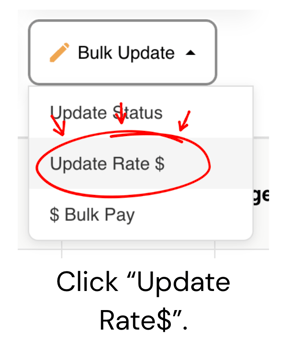
-
The rate type for officials is already set to "Per Game."
-
Enter the per-game rate for your event.
-
Click Confirm.
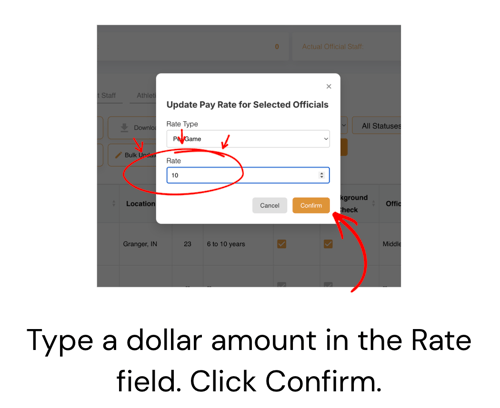
Done
The selected officials will now have their per-game rate updated.
💡 Tip: If all officials for the event are paid the same rate, use the header checkbox to select everyone and update them all at once.